

- Model Flexibility: Easily switch between different LLM providers while using only OpenAI code for all model interactions.
- Unified Interface: Use a consistent API format regardless of the underlying model
- Simplified Management: Access numerous models through a single integration
- Custom Models: Reference custom-deployed LLMs with the same workflow
Setting Up LiteLLM Proxy in Freeplay
Step 1: Set up LiteLLM Proxy & Add Models
In this example we will use gpt-3.5-turbo and claude-3-5-sonnet via Anthropic. To get set up with LiteLLM you can see the full docs here. To start, ensure you have a model config file like the one below:model_name in your LiteLLM Proxy configuration file.
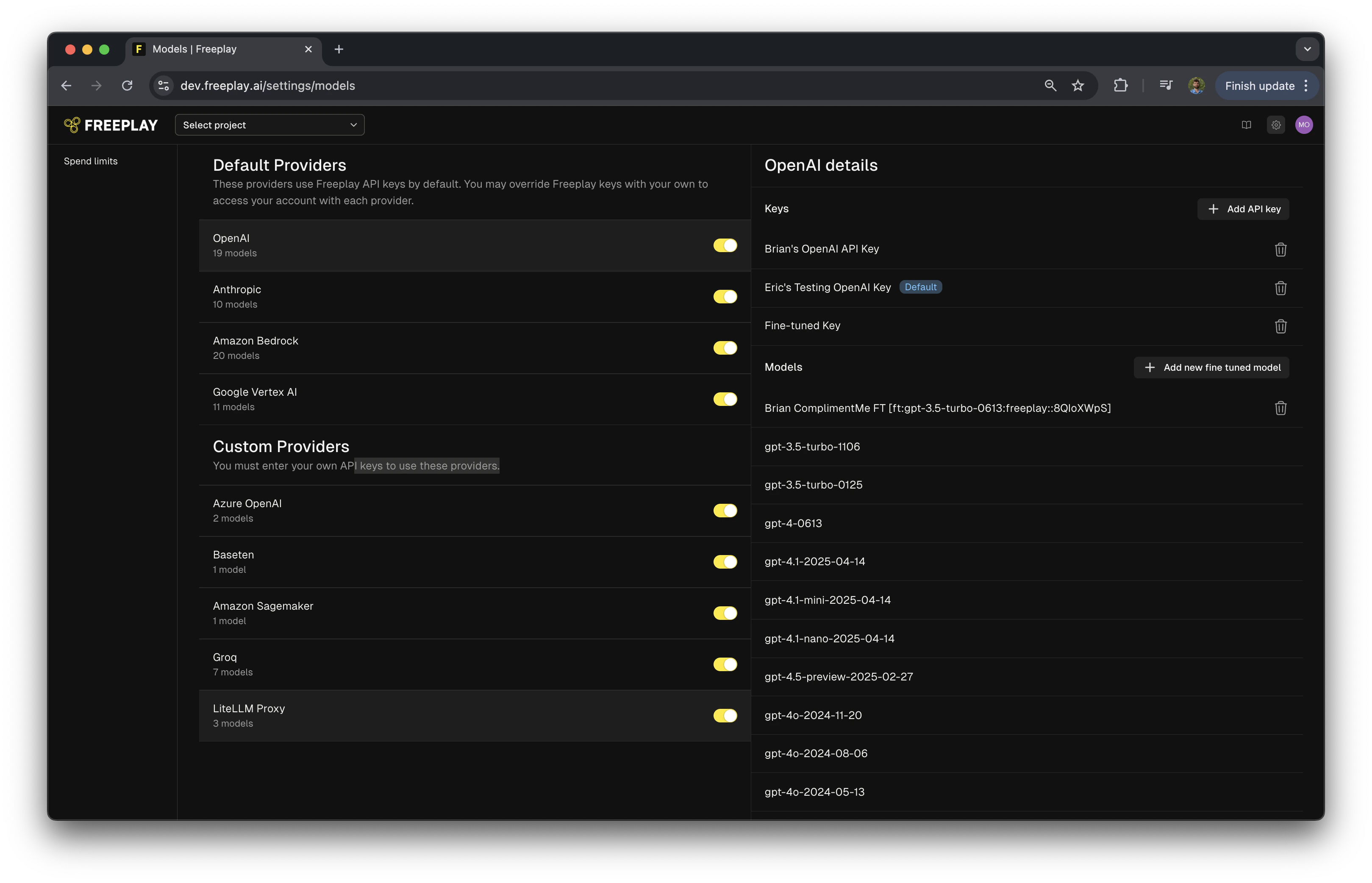
Step 2: Configure LiteLLM Proxy as a Custom Provider
- Navigate to Settings in your Freeplay account
- Find “Custom Providers” section
- Enable “LiteLLM Proxy” provider
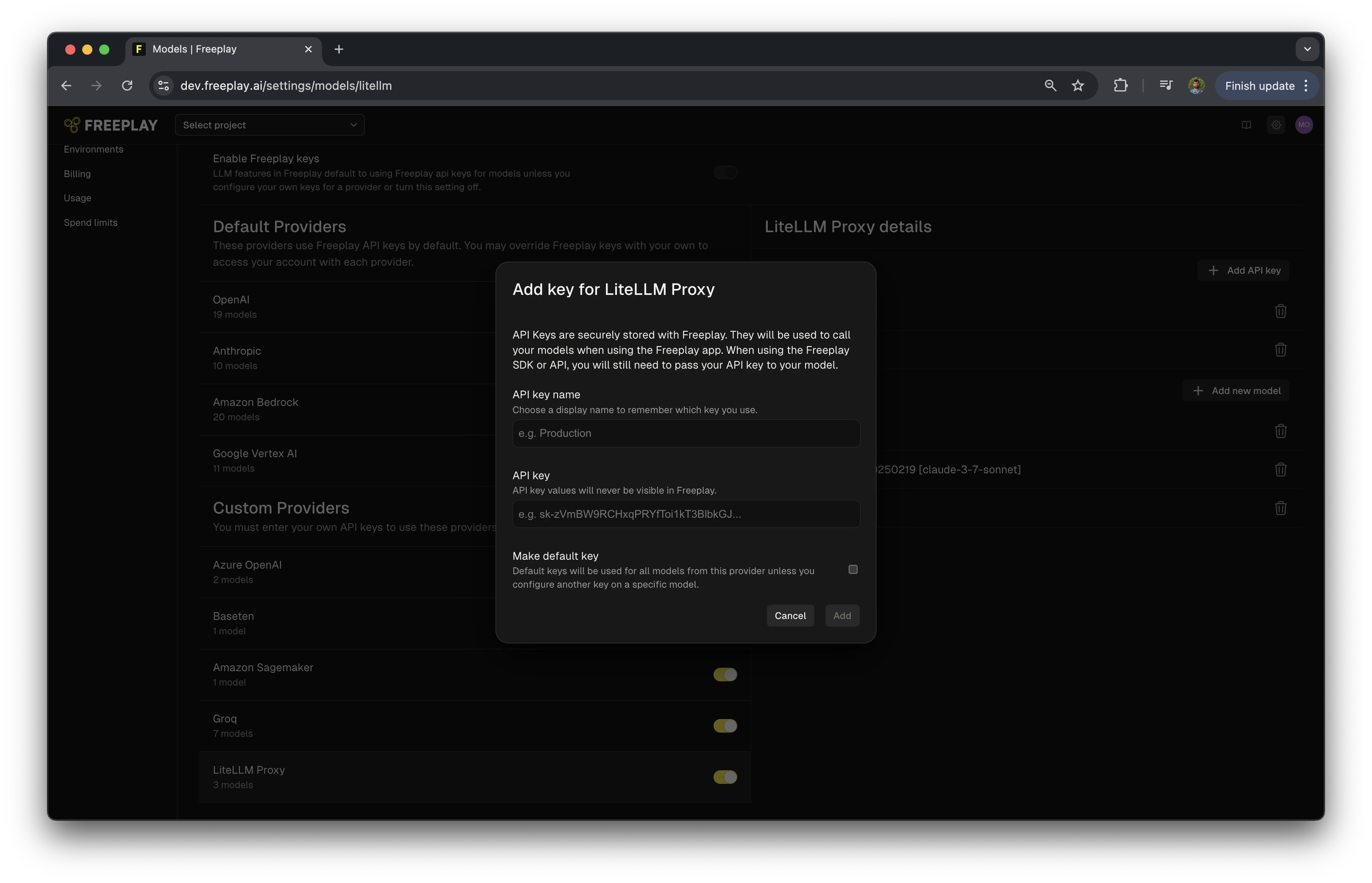
Step 3: Add an API Key
- Click “Add API Key”
- Name your API key
- Enter your LiteLLM Proxy Master key
- Optionally, mark it as the default key for LiteLLM Proxy
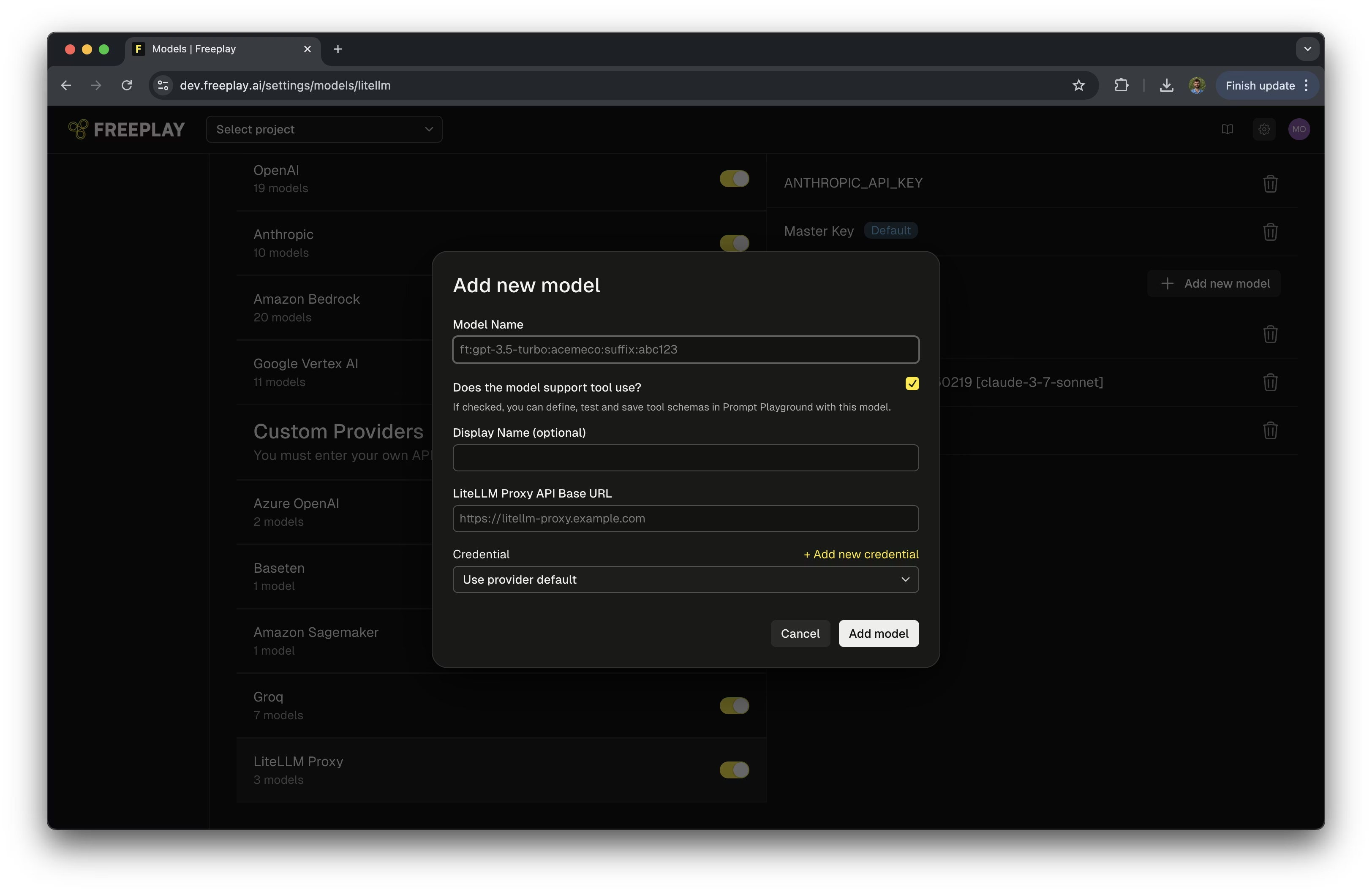
Step 4: Add Your LiteLLM Proxy Models
- Select “Add a New Model”
- Optionally select if the model supports tool use
- Optionally add a display name for the model
- Enter link to your LiteLLM API Proxy
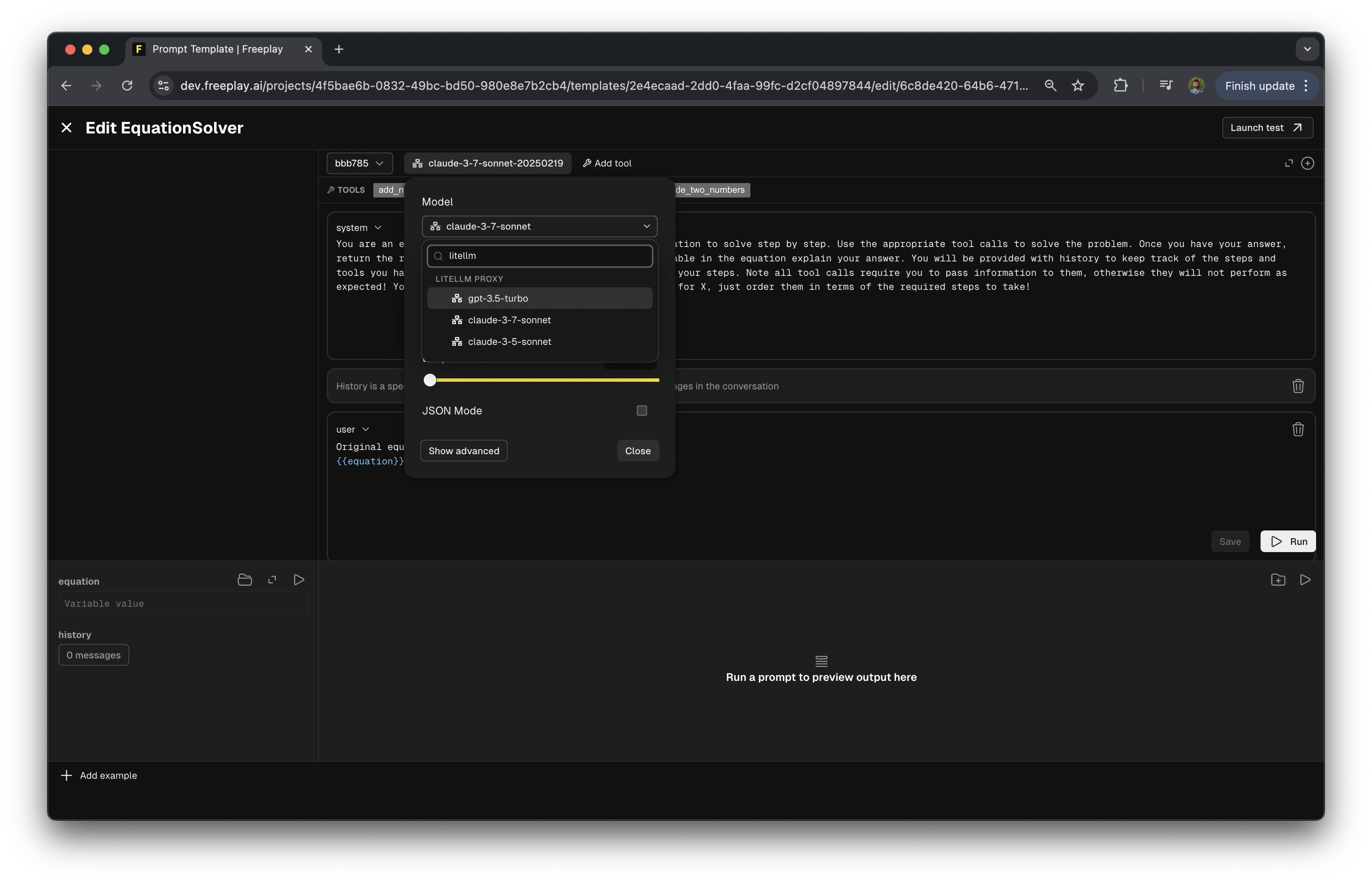
Step 5: Using LiteLLM Proxy Models in the Prompt Editor
- Open the prompt editor in Freeplay
- In the model selection field, search for “LiteLLM Proxy”
- Select one of your configured models
Integrating LiteLLM Proxy with Your Code
The following example shows how to configure and use LiteLLM Proxy with Freeplay in your application. The benefit of using LiteLLM Proxy is you only need to configure your calls to work with OpenAI, LiteLLM Proxy will handle all the formatting:Current Limitations
- Automatic Cost Calculation: UsageTokens must be passed for cost calculations to work with LiteLLM Proxy. Also, for self hosted models that depend on time, cost calculation is not currently supported.
- Auto-Evaluation Compatibility: Model-graded evals that are configured and run by Freeplay do not currently support LiteLLM Proxy models.
Additional Resources
- LiteLLM Proxy Server Documentation
- LiteLLM Supported Models
- Configure, Test & Deploy a Fallback LLM Provider
- Voice-Enabled AI with Pipecat, Twilio, and Freeplay